
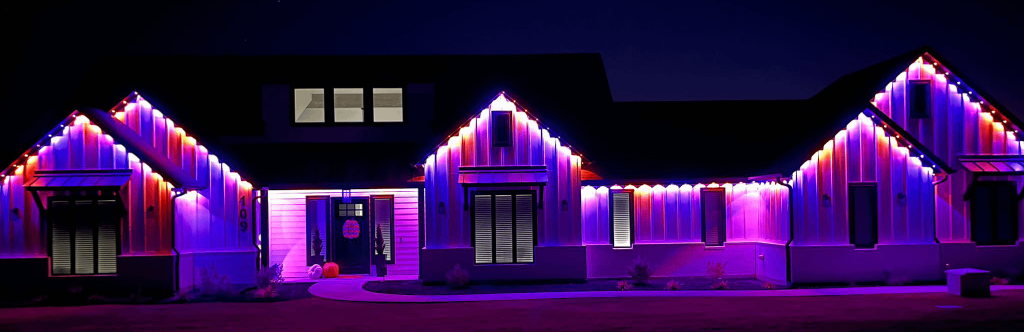
Have you ever wondered if you can turn off individual Govee lights without shutting down the entire setup? Whether you want to save energy, create the perfect mood, or control your lighting with more precision, knowing this trick can make a big difference.
Imagine adjusting just one light to match your vibe, while the others stay glowing. Keep reading, and you’ll discover exactly how to take full control of your Govee lights—making your space more comfortable and your smart home smarter.

Credit: us.govee.com
Govee Lights Overview
Govee lights offer a versatile way to brighten up your space with colorful and customizable lighting. Whether you’re aiming for a cozy atmosphere or a lively party vibe, understanding the different types of Govee lights and how you control them can make a big difference. Let’s break down what you need to know about these smart lights.
Types Of Govee Lights
Govee offers a variety of lighting options designed for different uses and styles. You’ll find:
- LED Light Strips:Flexible and easy to install, perfect for under cabinets, behind TVs, or along ceilings.
- Smart Bulbs:Standard bulbs that fit most fixtures, controlled remotely for color and brightness adjustments.
- Light Bars:Rigid lights that can be placed on desks or shelves to add ambient glow.
- Outdoor Lights:Weather-resistant options designed to light up patios or gardens.
Each type has unique features, but all share the ability to be controlled digitally, giving you a lot of flexibility in how you manage your lighting setup.
App And Remote Controls
One of the best parts about Govee lights is how you control them. You can use the Govee Home app on your smartphone, which offers detailed control over colors, brightness, and even preset modes. This app lets you turn individual lights on or off, change colors, and set schedules.
If you prefer something simpler, many Govee lights come with a remote control. The remote offers quick access to basic functions like power, brightness, and color changes without needing your phone. But did you know the app often provides more precise control, especially if you want to manage individual lights separately?
Have you tried turning off just one light in a group? The app usually makes this easy, but the remote might not. Knowing your options helps you get the most out of your Govee lighting experience.
Controlling Individual Lights
Controlling individual Govee lights allows precise customization of your lighting setup. This feature helps you create unique moods in different areas. It also saves energy by turning off lights not in use. Understanding how to control each light separately improves your overall experience.
Using The Govee Home App
The Govee Home App lets you manage each light individually. You can turn any light on or off with a simple tap. The app shows all connected lights in one place. Adjust brightness and color for each light separately. You can also set schedules for each light to save power. The app’s interface is user-friendly and easy to navigate. It supports grouping lights for quick control too.
Manual Control Options
Some Govee lights come with manual controls on the device. Use buttons to switch lights on or off directly. This option works without needing a phone or app. Manual control is useful during app or network issues. It often includes brightness and color change buttons. Keep the remote or controller nearby for quick access. Manual control complements app features for flexible use.
Step-by-step Guide To Turn Off Single Lights
Turning off individual Govee lights is simple and quick. Use the app to select the specific light you want to switch off without affecting others. This lets you control your lighting exactly how you like.
Turning off individual Govee lights is simple with the right steps. This guide will help you manage your Govee lighting system with ease. Follow each section to learn how to turn off a single light effectively.Connecting To Your Device
First, ensure your device is connected to the Govee app. Download the app if you haven’t already. Open the app and log in with your credentials. Make sure your Wi-Fi or Bluetooth is on. This ensures seamless communication with your Govee lights.Selecting The Light To Control
Once connected, navigate to the home screen of the Govee app. You will see a list of all connected lights. Browse through and select the specific light you want to control. Each light should have a unique identifier or name.Turning Off The Light
After selecting the light, you will see control options. Look for the power button or switch icon. Tap it to turn off the light. The selected light will switch off immediately. Repeat these steps for any other lights you wish to control.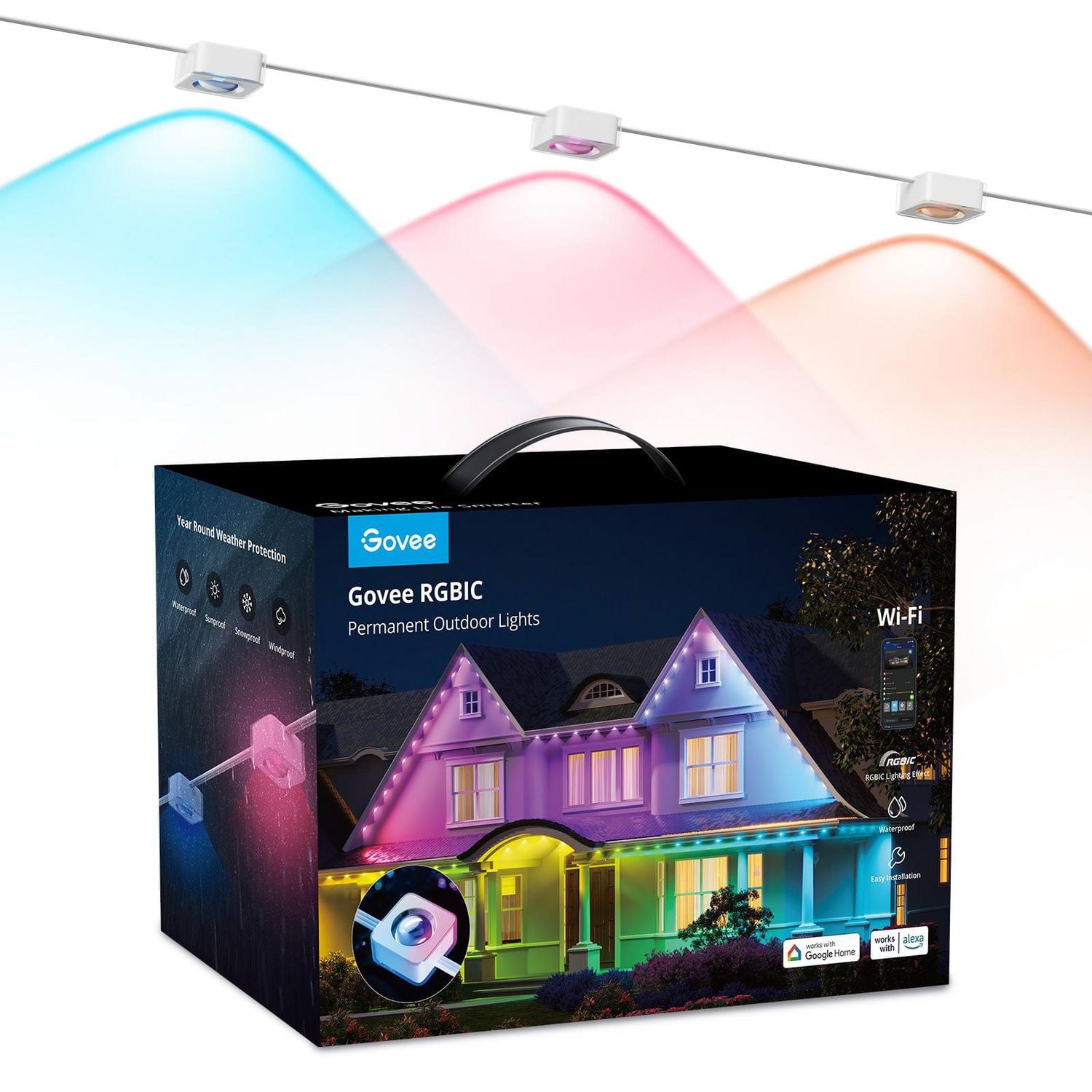
Credit: www.walmart.ca
Troubleshooting Common Issues
Troubleshooting common issues with your Govee lights can save you time and frustration. Often, problems like connectivity or unresponsive lights have simple solutions. Understanding these can help you get your lights back to working smoothly without needing expert help.
App Connectivity Problems
If your Govee lights aren’t connecting to the app, start by checking your Wi-Fi or Bluetooth settings. Make sure your phone is within range and that the connection is stable.
Try closing the app completely and reopening it. Sometimes, restarting your phone can also resolve temporary glitches.
Have you ensured the app has the necessary permissions? Sometimes, location services or Bluetooth permissions are required for the app to work correctly.
Light Not Responding
When a light doesn’t respond, first check if it’s properly powered. Loose plugs or faulty outlets can cause the lights to stay off or freeze.
Try turning the light off and on again using the physical switch. This can reset the device and clear minor errors.
If the light remains unresponsive, test it with another power source or outlet. This helps determine whether the issue is with the light or the power supply.
Firmware Updates
Outdated firmware can cause your lights to behave unpredictably. Check the Govee app regularly for firmware updates.
Updates often fix bugs and add new features, improving your lights’ performance and compatibility.
If an update fails, make sure your internet connection is stable and try again later. Sometimes, waiting a few hours before retrying can resolve server-related issues.
Tips For Efficient Light Management
Managing your Govee lights efficiently can save energy and enhance your home atmosphere. Knowing how to control individual lights gives you flexibility and precision. Here are some practical tips to help you master light management without hassle.
Grouping Lights
Grouping your Govee lights lets you control multiple bulbs at once. Instead of turning off each light separately, you can switch off an entire group with a single tap. This is especially useful if you have several lights in one room or area.
To set this up, open the Govee app and select the lights you want to group. Once grouped, you can adjust brightness or color for all lights simultaneously. This saves time and ensures consistent lighting throughout your space.
Scheduling And Automation
Scheduling your lights to turn off or on automatically helps you avoid wasting energy. You can set timers for when you leave home or go to bed, so you never forget to switch lights off. This feature also adds convenience to your daily routine.
Try creating custom schedules in the Govee app based on your lifestyle. For example, program your lights to dim gradually at night to help you relax. Have you noticed how small changes like this can improve your comfort without extra effort?

Credit: www.reddit.com
Frequently Asked Questions
Can You Turn Off Individual Govee Lights Separately?
Yes, you can turn off individual Govee lights using the Govee app. It allows you to control each light independently for customized settings.
How Do I Control Single Govee Lights With The App?
Open the Govee app, select your device, and choose the specific light strip or bulb. You can then turn it off or adjust brightness individually.
Is It Possible To Schedule Individual Govee Lights?
Yes, the Govee app supports scheduling for individual lights. You can set different timers and scenes for each light according to your preference.
Can Alexa Or Google Assistant Control Individual Govee Lights?
Yes, with proper setup, Alexa and Google Assistant can control individual Govee lights. Use voice commands to turn specific lights on or off separately.
Conclusion
You can easily turn off individual Govee lights using the app controls. This gives you more control over your lighting setup. It helps save energy and creates the mood you want. The process is simple and quick, even for beginners.
Just follow the steps in the app to manage each light separately. This feature makes Govee lights flexible and user-friendly for any space. Try it out to see how it fits your needs. Lighting your room your way has never been easier.



