
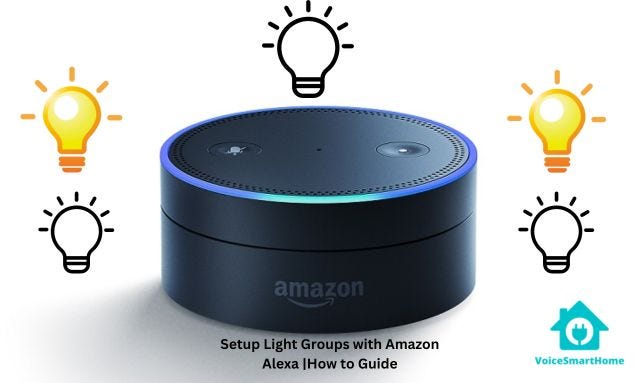
Imagine controlling your desk lamp with just your voice. No more fumbling for switches or getting up to adjust the light.
If you’ve ever wondered, “How to connect my desk lamp to Alexa,” you’re in the right place. This simple setup can make your workspace smarter and your life easier. Keep reading, and you’ll learn exactly how to turn your ordinary desk lamp into a hands-free lighting solution.
Your perfect, cozy workspace is just a few steps away.
Choose A Compatible Smart Lamp
Choosing the right smart lamp is key to connecting your desk lamp with Alexa. It ensures smooth control and easy setup. Not all lamps work well with Alexa. Picking a compatible device saves time and avoids frustration.
Smart lamps come in many types. Some have built-in smart features. Others use smart bulbs or plugs. Understanding these options helps you find the best fit for your desk lamp.
Check Alexa Compatibility
Make sure the lamp or device explicitly states Alexa support. Look for labels like “Works with Alexa” on the packaging or product description. Check the manufacturer’s website for compatibility details.
Devices compatible with Alexa can connect to the Alexa app. You can control them using voice commands or the app interface. Without compatibility, Alexa cannot recognize or control the lamp.
Select Between Smart Bulbs And Smart Plugs
Smart bulbs replace your regular lamp bulbs. They connect directly to Wi-Fi or a smart hub. You control brightness, color, and power through Alexa.
Smart plugs connect to your lamp’s power outlet. They turn the lamp on or off remotely. The lamp itself remains unchanged.
- Smart bulbs offer more control features.
- Smart plugs are easier to install and cheaper.
- Consider the lamp’s design and your control needs.
Choosing between bulbs or plugs depends on your lamp type and preferences. Both options work well with Alexa if compatible.
Prepare Your Desk Lamp
Getting your desk lamp ready to connect with Alexa is the first crucial step to enjoying hands-free control over your lighting. This preparation ensures that the connection process goes smoothly and your smart setup functions flawlessly. Let’s focus on how to set up your lamp with the smart device and guarantee it has a reliable power source.
Set Up The Lamp With Smart Device
Before connecting to Alexa, confirm your desk lamp is compatible with smart controls. Many smart lamps come with built-in Wi-Fi or Bluetooth capabilities, but if yours doesn’t, you might need a smart plug or smart bulb.
Here’s what you can do:
- Download the lamp’s dedicated app on your smartphone.
- Follow the app’s instructions to connect the lamp to your home Wi-Fi network.
- Test the lamp using the app to make sure it responds to commands like turning on/off or adjusting brightness.
Have you checked if your lamp supports voice assistants? If not, adding a smart plug can be a simple and affordable workaround. This lets Alexa control the power supply to your lamp, effectively making it smart.
Ensure Stable Power Connection
A stable power connection is vital for uninterrupted smart control. If your lamp or smart plug loses power frequently, Alexa won’t be able to respond when you need it.
Keep these tips in mind:
- Plug your lamp directly into a wall outlet rather than an extension cord to reduce power fluctuations.
- Avoid power strips that are overloaded with multiple devices.
- Check that the lamp’s power switch is always turned on; Alexa controls the smart device, not the physical switch.
Consider how often you experience power interruptions in your space. If it’s frequent, investing in a surge protector or an uninterruptible power supply (UPS) might save you frustration later.
Install The Alexa App
Download the Alexa app from your phone’s app store to begin. Open the app and sign in with your Amazon account to connect devices easily.
Installing the Alexa app is the first step to connect your desk lamp. The app helps link your smart devices with Alexa seamlessly. You need to set up and configure the app correctly for a smooth experience.Download And Sign In
Begin by downloading the Alexa app from your app store. It’s available for both Android and iOS devices. After downloading, open the app. You will see a sign-in screen. Enter your Amazon account details. If you don’t have an account, create one. Follow the on-screen instructions for an easy setup.Enable Required Permissions
To connect devices, the app needs permissions. Grant the app access to your microphone and location. This ensures it functions properly. Check your phone settings if needed. Allow notifications to stay updated. Your lamp will soon be ready to connect.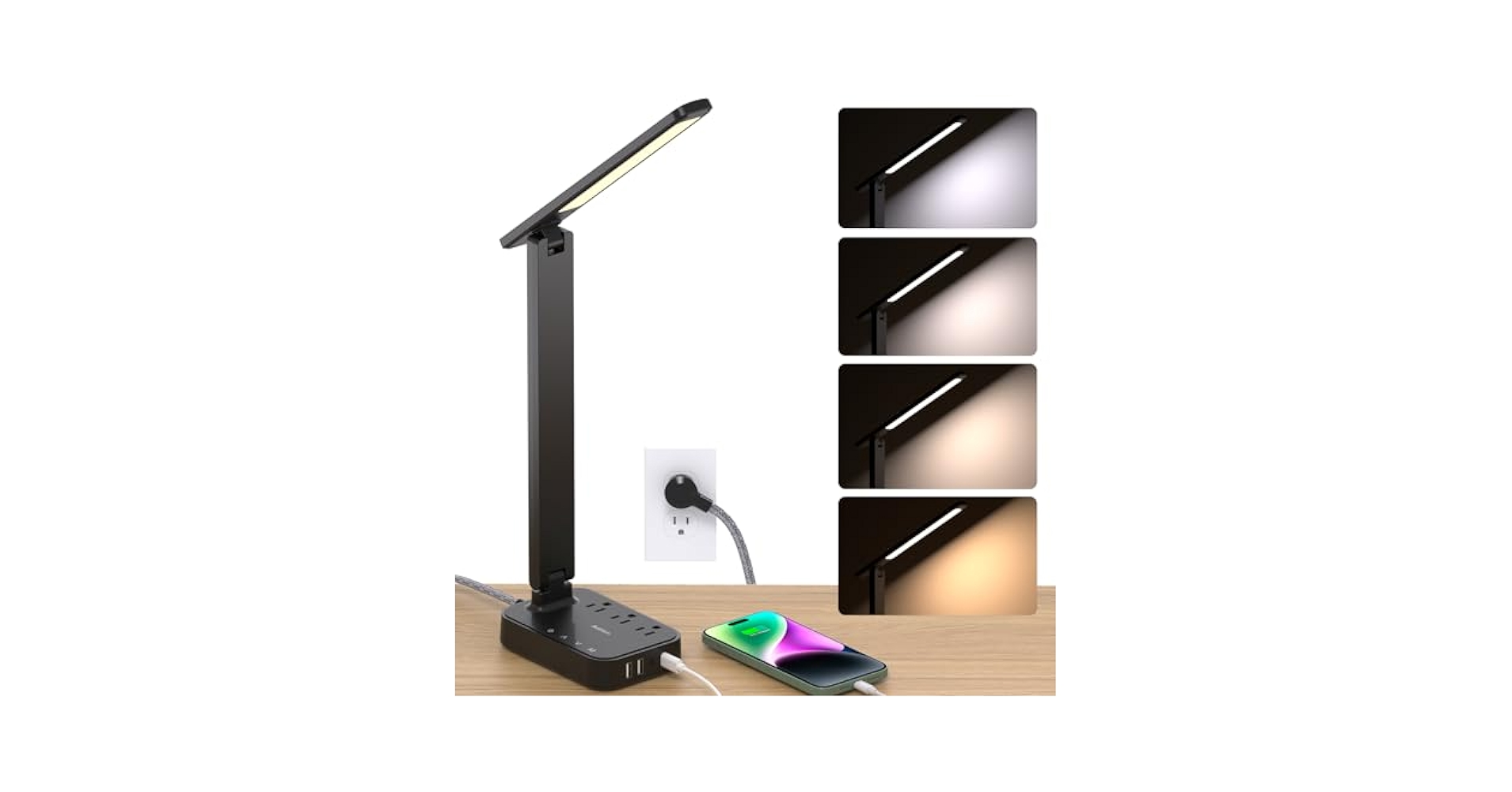
Credit: www.amazon.com
Connect The Lamp To Wi-fi
Connecting your desk lamp to Wi-Fi is the key step to control it with Alexa. This connection lets Alexa send commands to the lamp through the internet. A stable Wi-Fi network ensures smooth communication between your smart lamp and Alexa device.
Before starting, make sure your Wi-Fi is working well and your lamp supports Alexa integration. Most smart lamps use a 2.4 GHz Wi-Fi network, so check your router settings. Follow the steps below carefully to connect your lamp to Wi-Fi.
Follow Manufacturer Instructions
Each smart lamp has its own setup process. Always read the manual or quick start guide first. These guides explain how to enter Wi-Fi setup mode on your lamp.
Usually, you need to press and hold a button on the lamp until a light blinks. This blinking means the lamp is ready to connect. Open the lamp’s app on your phone and follow its prompts to select your Wi-Fi network and enter the password.
Keep your phone close to the lamp during setup. The app will confirm when the lamp connects successfully. If the lamp connects, you are ready to link it with Alexa.
Troubleshoot Common Connectivity Issues
Connection problems are common but fixable. Check these points if your lamp won’t connect:
- Make sure the Wi-Fi password is correct.
- Confirm your phone and lamp are near the router.
- Restart your router and lamp.
- Verify your Wi-Fi is 2.4 GHz, not 5 GHz, if required.
- Update the lamp’s app to the latest version.
- Reset the lamp to factory settings if needed, then try again.
Following these steps helps ensure your desk lamp connects to Wi-Fi properly. This connection is essential for smooth Alexa control.
Link The Lamp With Alexa
Linking your desk lamp with Alexa transforms the way you control your lighting. It lets you switch on the lamp, adjust brightness, or change colors—all with simple voice commands. The process is straightforward once you know the right steps.
Enable The Smart Device Skill
First, you need to activate the skill related to your smart lamp in the Alexa app. Open the app and tap on the menu icon.
Go to Skills & Gamesand search for the brand or model of your desk lamp. Enabling this skill allows Alexa to communicate directly with your device.
After enabling, you might be asked to log in to your lamp’s account or link it with Alexa. This step is essential for syncing the two systems securely.
Discover Devices In Alexa App
Once the skill is enabled, Alexa needs to find your desk lamp. In the Alexa app, tap Devicesat the bottom of the screen.
Choose Add Device, then select the type of device, such as “Light.” Alexa will start searching for compatible devices.
If your lamp doesn’t appear automatically, try turning it off and on again or check its Wi-Fi connection. Sometimes, restarting your router helps too.
After the device shows up, assign it to a group or room in your Alexa app. This makes controlling multiple devices easier and more organized.
Customize Lamp Settings
Customizing your desk lamp settings through Alexa makes your smart lighting experience truly personal and efficient. You can easily tailor how your lamp behaves based on your daily routines and preferences. This not only saves time but also enhances your comfort and productivity.
Rename Your Desk Lamp
Giving your desk lamp a unique name helps Alexa recognize it quickly. Instead of generic names like “Smart Light 1,” choose something memorable like “Study Lamp” or “Reading Light.”
To rename your lamp, open the Alexa app, navigate to the Devices section, select your lamp, and edit its name. This small change can prevent confusion, especially if you have multiple smart devices in your home.
Think about how you naturally refer to your lamp when speaking. Using that name with Alexa will make voice commands smoother and more intuitive.
Set Up Groups And Routines
Grouping your desk lamp with other smart devices streamlines control. For example, you can create a “Work Area” group that includes your lamp, smart plugs, and speakers.
Routines let you automate your lamp’s behavior based on time or actions. Imagine setting a routine that turns on your desk lamp and plays soft music at 7 PM every weekday to signal your work session.
To create groups and routines, go to the Alexa app’s Devices or Routines tab, then follow the prompts to add devices or set triggers. How could your daily schedule improve if your lamp automatically adjusted to your needs?
Control Your Lamp Using Alexa
Controlling your desk lamp with Alexa brings convenience right to your fingertips—or rather, your voice. It’s not just about turning the light on and off; you can adjust brightness, set schedules, and create moods without leaving your chair. Imagine walking into a dim room and simply saying, “Alexa, turn on my desk lamp,” and the perfect lighting greets you.
Use Voice Commands
Voice commands are the easiest way to control your lamp. After linking your smart lamp to Alexa, all you have to do is speak your request clearly. You can say things like:
- “Alexa, turn on the desk lamp.”
- “Alexa, dim the desk lamp to 50%.”
- “Alexa, change the desk lamp to warm light.”
These commands work instantly, saving you from fumbling with switches or apps. Have you noticed how much faster tasks feel when you just speak them out loud?
Operate Via Alexa App
The Alexa app gives you full control over your desk lamp from anywhere. You can create schedules to turn the lamp on or off at specific times. This is perfect if you want your lamp to turn on gradually as you wake up or off automatically when you leave the house.
Inside the app, you can also group your lamp with other smart devices. This means a single command like “Alexa, good night” can turn off your lamp along with other lights. How could setting up these routines change your daily habits?

Credit: www.amazon.com
Troubleshoot Connection Problems
Facing connection issues between your desk lamp and Alexa can be frustrating. However, most problems stem from simple glitches that you can fix yourself. Let’s look at effective ways to troubleshoot and get your smart lamp responding to Alexa commands again.
Reset Devices
Resetting your devices can clear out temporary errors blocking the connection. Start by unplugging your desk lamp and Alexa device from power for about 30 seconds. Then, plug them back in and try reconnecting.
If that doesn’t work, perform a factory reset on the desk lamp. Check the lamp’s manual for specific reset instructions—this usually involves holding a button until the light flashes. Remember, resetting erases previous settings, so you’ll need to set up the lamp with Alexa from scratch.
Have you noticed that sometimes a quick reset solves issues that seemed complex? It’s surprising how often this simple step clears hidden bugs.
Check Network Stability
Your Wi-Fi network plays a crucial role in keeping Alexa and your desk lamp connected. If the network is unstable or weak, commands may not reach your lamp.
Check your Wi-Fi signal strength near your desk lamp and Alexa device. If the signal is weak, try moving your router closer or use a Wi-Fi extender to boost coverage.
Also, ensure your router firmware is up to date and there are no bandwidth-heavy tasks running, like large downloads or multiple streaming devices. Have you experienced Alexa missing commands when your internet slows down? That’s a clear sign to check your network health.

Credit: manuals.plus
Frequently Asked Questions
How Do I Connect My Desk Lamp To Alexa?
To connect your desk lamp, ensure it is smart-enabled or plugged into a smart plug. Open the Alexa app, enable the corresponding skill, and discover devices. Follow the prompts to pair your lamp with Alexa for voice control.
Can I Control Any Desk Lamp With Alexa?
No, Alexa can only control smart lamps or lamps plugged into smart plugs. Traditional lamps need smart adapters to work with Alexa. Ensure your device supports Alexa integration before attempting to connect it.
What Voice Commands Work With Alexa For Desk Lamps?
You can say commands like “Alexa, turn on the desk lamp” or “Alexa, dim the desk lamp to 50%. ” Custom names can be assigned for easier control. Alexa responds to brightness and power commands for smart lamps.
Do I Need A Smart Plug For My Desk Lamp?
A smart plug is necessary if your desk lamp isn’t inherently smart. It connects your traditional lamp to Alexa by controlling its power. Ensure the smart plug is compatible with Alexa for seamless integration.
Conclusion
Connecting your desk lamp to Alexa makes life easier. You control the light with simple voice commands. No more fumbling in the dark or searching for switches. The setup is quick and works with most smart bulbs. Enjoy hands-free lighting while working or relaxing.
Small steps like this bring smart technology to your home. Try it today and see how comfortable your space becomes. Smart lighting is practical and fun to use.



