
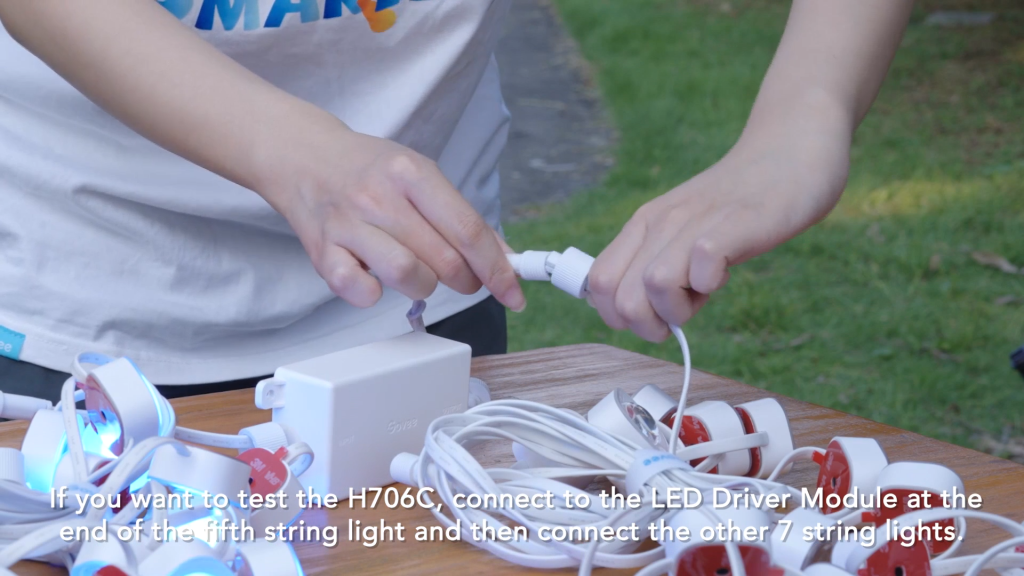
Do you want your Govee outdoor lights to glow in perfect harmony? Imagine creating stunning light shows where every bulb shines together, turning your backyard into a vibrant, eye-catching space.
Syncing your Govee outdoor lights isn’t just about convenience—it’s about unlocking the full magic of your lighting setup. In this guide, you’ll discover simple steps to sync your lights effortlessly, making your outdoor area more inviting and fun. Keep reading to learn how to bring your Govee lights to life as one seamless display.
Choosing Compatible Govee Outdoor Lights
Choosing compatible Govee outdoor lights is essential for creating a seamless and synchronized lighting experience. If your lights don’t match in compatibility, syncing them together can become frustrating or even impossible. Understanding which models work well together saves you time and enhances your outdoor ambiance effortlessly.
Checking Model Compatibility
Not all Govee outdoor lights are designed to sync with each other. Start by checking the exact model numbers on the packaging or in the Govee app. Lights from the same product series or those explicitly stated to support group control are your best bet.
For example, the Govee RGBIC and Govee RGBW outdoor light strips often sync smoothly because they share communication protocols. However, mixing a Govee floodlight with a light strip might not allow synchronization due to different hardware and firmware.
Have you ever tried syncing lights only to find one won’t respond? That’s usually a sign of incompatible models. Checking official compatibility lists or user reviews can prevent this headache.
Matching Light Features
Beyond model numbers, matching the features of your lights is crucial. Make sure the color modes, brightness levels, and control options align. Lights that support similar effects, like color-changing or music sync, will create a more unified display.
Imagine pairing a light strip with multicolor capabilities alongside a single-color spotlight—it’s tough to achieve perfect synchronization. Matching lights with the same feature set means you can apply the same settings across all units without compromise.
Also, consider the app control features. If one light supports voice commands and another doesn’t, your experience might feel disjointed. Ask yourself: do you want all your lights to react the same way to your commands?
Credit: www.msn.com
Preparing Your Lights For Syncing
Getting your Govee outdoor lights ready to sync is key to creating a seamless lighting experience. Before you try to connect multiple lights, you need to make sure each unit is powered up and set to a clean slate. This preparation saves you time and frustration, ensuring your lights respond quickly and correctly when syncing.
Powering On The Lights
Start by plugging in your Govee outdoor lights to a power source. Check that each light strip or bulb shows a steady glow or a blinking indicator to confirm it’s powered on. If the lights don’t turn on right away, try a different outlet or inspect the power cable for any damage.
Have you ever rushed through this step only to find the sync process failing? Taking a moment to verify power status helps avoid that common pitfall.
Resetting To Factory Settings
Resetting your lights clears any previous settings that might interfere with syncing. This step is especially helpful if you’re adding new lights or troubleshooting connection issues.
- Locate the reset button on your Govee light unit or refer to the manual for the specific reset method.
- Hold down the reset button for about 5-10 seconds until the lights flash, indicating a successful reset.
- Once reset, the lights will be in their default state, ready to pair and sync with other units.
Resetting can feel like starting over, but it often solves hidden conflicts. Have you tried syncing without a reset? That’s usually where syncing problems begin.
Using The Govee Home App
Open the Govee Home App and connect all your outdoor lights to the same Wi-Fi network. Select the sync option to control multiple lights together smoothly. Adjust settings for a unified lighting effect across your outdoor space.
Syncing your Govee outdoor lights to create a harmonious and vibrant display is an exciting process. The Govee Home App acts as your command center, allowing you to effortlessly control and sync multiple lights for a stunning visual effect. With its intuitive interface, even those new to smart lighting can get their lights shining in unison with ease. Here’s how you can make the most of this app.Installing And Setting Up The App
Getting started with the Govee Home App is a straightforward process. Begin by downloading the app from the App Store or Google Play Store and install it on your smartphone. Once installed, open the app and create an account or log in if you already have one. Ensure your phone is connected to the Wi-Fi network you plan to use with your lights.Adding Lights To The App
Adding your outdoor lights to the app is the next step to bringing them under your control. In the app, tap the ‘+’ icon to add a new device. Follow the prompts to select your specific Govee light model and ensure they are powered on and in pairing mode. This usually involves pressing a button on the light or controller until it flashes. Your app will then search for and connect to the lights, allowing you to rename them for easy identification later.Grouping Lights For Sync
Once your lights are added, grouping them for synchronization is a breeze. Navigate to the ‘Device Management’ section within the app. Here, you can select multiple lights to form a group. Grouping allows you to control them simultaneously, ensuring they all change colors, dim, or brighten together, creating a unified display. Consider experimenting with different groupings to see what works best for your space. Would you prefer all your front yard lights to sync separately from the backyard, or should all lights pulse as one? The app gives you the flexibility to adjust and perfect your setup.
Credit: www.reddit.com
Syncing Lights Manually
Syncing Govee outdoor lights manually gives you full control over their appearance. You can match colors, modes, brightness, and effects exactly. This method works well when you want a personalized setup without relying on automatic syncing features.
Manual syncing is simple and helps create a cohesive look across all your lights. It lets you adjust settings step-by-step to ensure everything looks perfect outside your home or garden.
Setting The Same Color And Mode
Start by opening the Govee app on your phone. Select each outdoor light strip or bulb you want to sync. Choose the color you want for all lights. You can pick from presets or create custom colors.
Next, pick the lighting mode. Options include steady, flashing, or color-changing. Set the same mode on each light to keep them synchronized. Double-check each light’s color and mode before moving on.
Adjusting Brightness And Effects
After setting color and mode, focus on brightness. Adjust the brightness slider in the app for each light. Make sure all lights have the same brightness level. This keeps the lighting balanced and consistent.
Then, explore lighting effects like fades or strobe. Apply the same effect to every light. This step enhances the overall look and makes your outdoor space inviting. Manual adjustments let you control every detail easily.
Troubleshooting Sync Issues
Syncing your Govee outdoor lights can sometimes hit a snag, especially when you’re aiming for that perfect coordinated glow. Troubleshooting sync issues doesn’t have to be frustrating if you know what to look for and how to fix it. Let’s break down the common problems and practical fixes to get your lights shining in harmony again.
Common Syncing Problems
One of the most frequent issues is that the lights fail to sync at all. This can happen if the devices are too far apart or if there’s interference from other wireless devices nearby.
Another problem is inconsistent lighting effects, where some lights flash or change colors differently from others. This usually happens when firmware versions don’t match or the app hasn’t been updated.
Sometimes, the sync will work initially but then drop after a few minutes. This can be due to weak Wi-Fi signals or power fluctuations affecting the lights.
Fixing Connectivity Errors
Start by checking your Wi-Fi connection. Make sure your router is close enough to the lights and that the signal is strong. Walls and large metal objects can block signals, so repositioning your router or lights might help.
Restarting your router and the Govee app can clear temporary glitches. It’s a simple step but often effective. Also, verify that your app and light firmware are updated to the latest versions.
If the problem persists, try resetting your Govee lights. Hold the power button for about 5 seconds until the lights flash, then set them up again in the app. This often clears any sync conflicts.
Have you noticed certain times when syncing fails more often? Consider whether nearby electronics or network traffic might be causing interference, and try syncing during quieter periods.

Credit: www.reddit.com
Tips For Enhancing Light Synchronization
Enhancing the synchronization of your Govee outdoor lights creates a more stunning and unified lighting display. Small adjustments can improve how well your lights work together. Focus on signal strength and smart settings to get smoother effects. These tips help your lights respond faster and look better as a group.
Optimizing Wi-fi Signal
A strong Wi-Fi signal is key for syncing Govee lights. Place your router closer to the lights to reduce interruptions. Avoid walls and metal objects that block signals. Use a Wi-Fi extender if needed to boost coverage outdoors. Ensure your network is stable and not overcrowded by other devices. A steady connection keeps the lights in sync without lag or flicker.
Using Scenes And Timers
Scenes let you set specific colors and patterns for all lights at once. Use the Govee app to customize scenes that fit your mood or event. Save your favorite scenes for quick access. Timers help automate lighting schedules so lights turn on or off together. Set timers to match sunrise or sunset for natural timing. Combining scenes and timers makes your outdoor lighting smart and easy to control.
Frequently Asked Questions
How Do I Connect Multiple Govee Outdoor Lights?
To connect multiple Govee outdoor lights, use the Govee Home app. Add each light to the app, then group them to sync colors and effects easily.
Can I Sync Govee Lights With Different Models?
Yes, you can sync different Govee outdoor light models if they support app control and grouping features through the Govee Home app.
What App Controls Govee Outdoor Light Syncing?
The Govee Home app is used to control and sync all Govee outdoor lights. It offers easy group setup and customization options.
How To Troubleshoot Syncing Issues With Govee Lights?
Restart the app and lights if syncing fails. Ensure all lights are on the same Wi-Fi network and updated to the latest firmware.
Conclusion
Syncing Govee outdoor lights creates a bright, unified display. It makes your space look neat and inviting. Follow the steps carefully to connect each light. Test the connection to ensure all lights work together. Adjust settings as needed for the best effect.
Enjoy the easy control and beautiful lighting outside. Keep your lights updated to avoid syncing issues. Now, your outdoor area shines with perfect harmony. Simple steps bring great results.



