
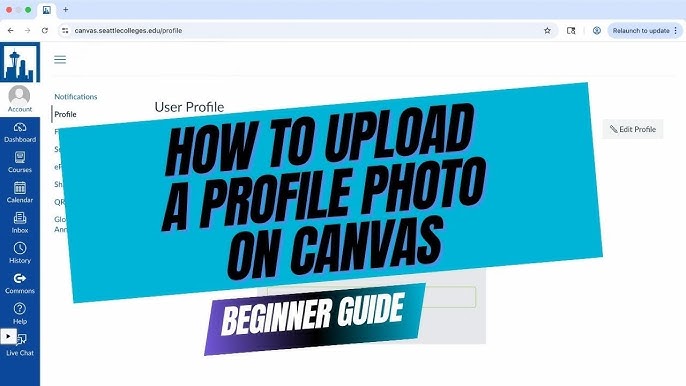
Are you ready to showcase your creativity and share your stunning photos with the world? Learning how to upload a photo on Canvas is a simple yet powerful skill that can transform your digital experience.
Whether you’re a student aiming to enhance your online portfolio or a professional looking to impress clients, mastering this task is crucial. Imagine the satisfaction of seeing your image perfectly displayed, capturing attention and sparking interest. In this guide, you’ll discover the step-by-step process to make your photos shine on Canvas effortlessly.
Stay with us, and you’ll be uploading like a pro in no time!

Credit: at.csudh.edu
Preparing Your Photo
Preparing your photo before uploading it to Canvas is important. A good photo enhances your work and makes your project look professional. Taking time to prepare ensures your image looks clear and fits well.
Choosing The Right Image
Select a photo that matches your project’s purpose. Use images with clear details and good lighting. Avoid blurry or dark photos. Choose images that fit the style and message you want to share.
Editing For Best Quality
Edit your photo to improve its appearance. Adjust brightness and contrast to make details visible. Crop the image to focus on key parts. Remove any distractions or unwanted objects. Keep edits simple and natural.
Optimizing File Format
Choose the best file type for Canvas upload. Use JPEG for photos with many colors. PNG works well for images with transparency or text. Keep file size under Canvas limits for faster upload. Compress images without losing quality.
Accessing Canvas
Accessing Canvas is the first crucial step in uploading a photo. Without smoothly getting into the platform and finding the right place to upload, you might feel stuck or frustrated. Let’s make this process straightforward so you can focus on sharing your visuals quickly and confidently.
Logging Into Your Account
Start by opening your preferred web browser and visiting the official Canvas website or your institution’s Canvas portal.
Enter your username and password carefully—typos can cause delays. If you’ve forgotten your credentials, use the “Forgot Password” option to reset them instantly.
Once logged in, you’ll see your dashboard displaying your courses and notifications. This confirms you’re ready to move to the next step.
Navigating To The Upload Section
Look for the course or area where you want to upload your photo, such as assignments, discussions, or modules.
Click on the relevant section, then find the button or link that says “Submit Assignment,” “Add Media,” or “Upload File.” The wording can vary, but it’s usually clear and visible.
Don’t hesitate to explore the toolbar or menu if you don’t spot the upload option right away. Sometimes, it hides under icons like a paperclip or camera.
Uploading Your Photo
Uploading your photo on Canvas is a straightforward process, but it’s easy to overlook some details that can make the experience smoother and faster. Whether you’re sharing artwork, project images, or personal photos, understanding how to upload your file correctly ensures your image appears crisp and clear. Let’s walk through the key steps to get your photo onto Canvas without frustration.
Selecting The Upload Option
Start by locating the upload button within the Canvas interface. This is usually labeled as “Upload”or marked with an icon like a cloud with an arrow. Clicking this opens the path to your device’s storage, making it simple to add your photo.
If you don’t see the upload option immediately, check under menus like “Files”or “Assignments”. Canvas often organizes upload areas depending on the course or task, so taking a moment to scan the interface helps avoid confusion.
Browsing And Choosing Your File
Once the upload dialog appears, you’ll browse your computer or device for the photo you want to share. Using clear file names can speed this up, especially if you have many images saved.
- Navigate to the folder where your photo is stored.
- Look for common image formats like .jpg, .png, or .gif.
- Select the photo by clicking on it once to highlight it.
Have you ever struggled to find the right file because of vague names? Renaming photos before uploading can save you from this hassle and prevent uploading the wrong image.
Confirming Upload
After selecting your photo, Canvas usually prompts you to confirm the upload. Look for a button labeled “Open”, “Upload”, or “Submit”depending on the context.
Wait a few moments for the upload to finish. The speed depends on your file size and internet connection, so keeping photos optimized (under 5MB) helps.
Once uploaded, check the preview or thumbnail to ensure the correct photo appears. If something looks off, you can usually delete and re-upload without losing much time.
Adjusting Your Photo
Adjusting your photo on Canvas is where your creativity truly begins. This step allows you to make sure your image fits perfectly and looks just right before finalizing your project. Small tweaks can make a big difference in how your photo complements your design.
Resizing And Positioning
Start by resizing your photo to fit the space you’ve allocated. You can drag the corners to scale the image up or down without losing quality. Positioning is just as important—try moving the photo around to find the best spot that balances your layout.
Have you noticed how a slight shift in placement can change the entire mood of your design? Don’t hesitate to experiment until it feels natural and visually appealing.
Applying Filters And Effects
Filters can transform your photo’s look instantly. Whether you want a vintage vibe or a crisp, modern feel, applying effects helps set the tone. Adjust brightness, contrast, or add a subtle vignette to highlight your subject.
Be careful not to overdo it; too many effects can distract from your message. Think about what emotion you want your photo to convey and choose filters that support that feeling.
Previewing Changes
Always preview your changes before saving. Canvas lets you see how your photo will appear in the final design, helping you catch any misalignments or odd color shifts. This step saves time and frustration later on.
Ask yourself: Does the photo look balanced? Is it drawing attention where you want it? Previewing ensures your adjustments enhance the overall impact.
Saving And Sharing
After uploading your photo on Canvas, saving and sharing your work properly ensures you don’t lose progress and can showcase your creativity. These two actions keep your projects safe and allow you to connect with others effortlessly.
Saving Your Work
Canvas usually autosaves your project, but it’s smart to manually save as well. Click the Savebutton often, especially after making big changes.
Saving your photo work means you can return anytime to tweak or improve it. Don’t forget to name your file clearly so you can find it easily later. Have you ever lost hours of work because you forgot to save? It’s frustrating, and easily avoidable with good habits.
Sharing Options
Canvas offers several ways to share your photo once you’re happy with it. You can:
- Download the image to your device for personal use or offline sharing.
- Share directly via email or social media platforms integrated with Canvas.
- Generate a shareable link to send to friends or collaborators.
Think about your audience—are you sharing with friends, clients, or a public community? Choose the option that fits best. Sharing can also spark useful feedback that improves your future work.
Troubleshooting Upload Issues
Sometimes uploads don’t go as planned. If your photo won’t upload, first check your internet connection. Slow or unstable internet often causes problems.
Clear your browser cache or try a different browser if the issue persists. Also, verify that your photo meets Canvas’s file size and format requirements. Have you checked if your file is too large or in an unsupported format? Fixing these simple issues usually gets things back on track quickly.

Credit: www.youtube.com

Credit: www.amazon.com
Frequently Asked Questions
How Do I Upload A Photo On Canvas Step-by-step?
To upload a photo on Canvas, log in and open your course. Click on “Assignments” or “Discussions,” then select the upload option. Choose your photo file, upload it, and submit or save. Ensure the file format is supported, like JPG or PNG.
What File Types Are Supported For Photo Uploads On Canvas?
Canvas supports common image formats like JPG, PNG, and GIF for photo uploads. Avoid using unsupported formats to prevent upload errors. Always check the file size limit to ensure your photo uploads smoothly.
Can I Edit A Photo After Uploading It On Canvas?
Canvas does not offer photo editing tools after upload. Edit your photo using external software before uploading. Make sure the image meets your desired quality and size before submitting it on Canvas.
Why Is My Photo Not Uploading On Canvas?
Photo upload issues may occur due to file size limits, unsupported formats, or internet problems. Check your connection, file type, and size. Try refreshing the page or using a different browser to resolve upload failures.
Conclusion
Uploading a photo on Canvas is simple and quick. Just follow the clear steps shared in this guide. You can easily add images to your courses or assignments. This helps make your work more interesting and clear. Practice a few times to feel confident with the process.
Remember, using photos can improve your presentations and messages. Now, you are ready to add pictures smoothly on Canvas anytime. Keep exploring and enjoy creating with your photos.



