
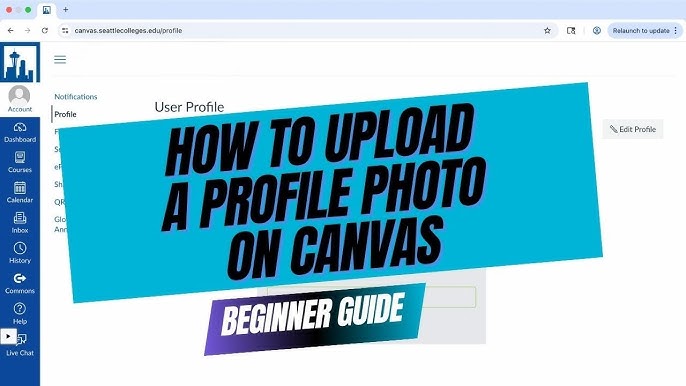
Are you trying to upload a picture to Canvas but don’t know where to start? You’re not alone.
Whether it’s for an assignment, a profile, or a discussion post, adding images can make your work stand out. This guide will walk you through simple, step-by-step instructions to help you upload your pictures quickly and without frustration. By the end, you’ll feel confident sharing your visuals on Canvas every time.
Keep reading to discover how easy it can be!
Credit: www.milweb1.com
Preparing Your Picture
Uploading a picture to Canvas involves several key steps. Preparing your picture is the first step. This ensures your image uploads correctly and looks great.
Choosing The Right Image
Select an image that suits your purpose. Make sure it is clear and relevant. Avoid images that are too busy or cluttered. Clear and simple images work best. Consider the subject and focus on one main element.
Editing For Best Quality
Edit your image to enhance its quality. Use simple editing tools available online. Adjust brightness, contrast, and color balance. Cropping unnecessary parts can improve focus. Ensure the image is sharp and clear.
Optimizing File Size
Large files can slow down loading times. Reduce the file size without losing quality. Use compression tools to shrink the image size. Aim for a balance between quality and size. This ensures fast uploads and good display on Canvas.

Credit: at.csudh.edu
Accessing Canvas Platform
Accessing the Canvas platform is the first essential step to upload pictures. It provides a user-friendly interface for students and teachers. Knowing how to log in and find the upload area saves time and effort. The process is simple and quick once familiar.
Logging Into Your Account
Start by opening your preferred web browser. Enter the Canvas website URL provided by your institution. On the homepage, find the login section. Use your username and password to sign in. If you forgot your password, use the recovery option. After logging in, you will see your dashboard.
Navigating To The Upload Section
From your dashboard, look for the course where you want to upload a picture. Click on the course name to enter. Inside the course, locate the menu on the left side. Find and click the “Files” or “Assignments” section depending on where you want to upload. Look for the upload button, usually marked with a plus sign or “Upload.” Click it to open the file selector window.
Uploading Your Picture
Uploading your picture to Canvas is easier than you might think. Whether you’re adding a photo for a project, assignment, or profile, understanding the upload process helps you avoid frustration and saves time. Let’s walk through how you can get your images into Canvas smoothly and quickly.
Selecting The Upload Method
You have multiple ways to upload your picture depending on your device and where your image is stored. Canvas supports direct uploads from your computer, linking from cloud storage like Google Drive or Dropbox, and even drag-and-drop functionality.
Think about where your picture is saved. Is it on your phone, desktop, or in the cloud? Choosing the right upload method based on this will speed up the process and reduce errors.
Step-by-step Upload Process
- Locate the Upload Area:Navigate to the area on Canvas where you want to add your picture, such as an assignment submission or profile settings.
- Click the Upload Button:Look for buttons labeled “Upload” or “Choose File.” These open a file browser window.
- Select Your Picture:Find your image file on your device or cloud storage, then click “Open” or “Choose.”
- Confirm the Upload:Some Canvas sections require you to click “Submit” or “Save” after uploading. Don’t skip this step or your image won’t be added.
Following these steps carefully ensures your picture appears exactly where you want it.
Troubleshooting Common Issues
Sometimes uploads fail or images don’t appear as expected. Don’t panic—these problems usually have simple fixes.
- File Size Limits:Canvas often restricts file size. Check your image size and resize if necessary using free tools.
- Unsupported File Types:Stick to common image formats like JPEG, PNG, or GIF to avoid compatibility issues.
- Internet Connection:A slow or unstable connection can interrupt uploads. Try reconnecting or switching networks.
- Browser Issues:Clear your cache or switch browsers if uploads keep failing.
Have you ever lost an important image upload due to one of these issues? Taking a moment to troubleshoot can save you from repeating the process multiple times.

Credit: www.youtube.com
Adjusting Picture Settings
Adjusting picture settings on Canvas helps make your images fit perfectly. It improves the overall look of your project. You can change the size, position, and style of your picture easily. This section explains how to customize these settings for better visuals.
Resizing And Positioning
Resize your picture to match your canvas space. Drag the corners to make it bigger or smaller. Move the image by clicking and dragging it across the canvas. Align it with other elements for a clean layout. Use grid lines or guides if available for precise placement.
Applying Filters And Effects
Filters change the mood of your picture quickly. Try options like black and white, sepia, or brightness adjustments. Effects can soften or sharpen your image. Use them to highlight details or create a specific style. Keep effects subtle to avoid overpowering your design.
Adding Captions Or Descriptions
Captions help explain or give context to your pictures. Add text below or beside your image. Keep the text short and clear. Use simple words to make it easy to read. Choose a font and size that matches your design style. This makes your project more informative and engaging.
Saving And Sharing
Saving and sharing your pictures on Canvas is important. It helps keep your work safe and lets others see your creations. Knowing how to save and share makes your experience easier and more enjoyable.
Saving Your Work
Canvas saves your work automatically as you edit. Still, it’s smart to save manually too. Click the “Save” button often to avoid losing changes. Your pictures stay in your Canvas account for easy access later.
Sharing Options On Canvas
Canvas offers several ways to share your pictures. You can share directly with friends or classmates. Use the “Share” button to get a link or invite others by email. You can set permissions to control who can view or edit your picture.
- Share via a link
- Invite people by email
- Set view or edit permissions
Downloading Your Picture
Download your picture to keep a copy on your device. Click the “Download” option to save it as a file. Choose popular formats like PNG or JPEG. This way, you can use your picture outside Canvas anytime.
Tips For Stunning Results
Uploading pictures to Canvas is easy, but creating stunning results takes planning. Good images grab attention and tell a story. This section shares simple tips to help your pictures look their best on Canvas.
Choosing High-quality Images
Select clear and sharp images for uploading. Avoid blurry or pixelated photos. Use pictures with good lighting and balanced colors. High-resolution images keep details crisp on all screen sizes. Save images in formats like JPEG or PNG for best quality.
Consistent Style And Theme
Keep your pictures visually connected by using a consistent style. Pick colors, filters, or moods that match your Canvas project. This creates harmony and makes your display professional. Avoid mixing too many different styles or themes.
Regular Updates And Maintenance
Update your Canvas images often to keep content fresh. Remove outdated pictures and replace them with new ones. Check image quality regularly and fix any issues. This keeps your Canvas attractive and engaging over time.
Frequently Asked Questions
How Do I Upload A Picture To Canvas?
To upload a picture to Canvas, go to your course page, click on “Files,” then “Upload. ” Select the image from your device and confirm. The picture will be available for use in assignments, discussions, or pages.
What Image Formats Does Canvas Support For Upload?
Canvas supports common image formats like JPEG, PNG, GIF, and BMP. Ensure your file is under the size limit to upload successfully. Using supported formats ensures your images display correctly across all Canvas tools.
Can I Upload Pictures Directly To Assignments In Canvas?
Yes, you can upload pictures directly when submitting assignments. Use the “File Upload” option in the submission box. Choose your image file and submit it along with your assignment.
How Do I Add Pictures To Canvas Pages Or Discussions?
Open the page or discussion editor, click the image icon, and upload your file. Alternatively, drag and drop the picture into the editor. This allows you to visually enhance your content easily.
Conclusion
Uploading pictures to Canvas is simple and quick. Follow the steps carefully to avoid errors. Make sure your image is clear and the right size. You can always try again if something goes wrong. Practice helps you get better at using Canvas tools.
Now, you are ready to add images to your projects with ease. Keep exploring to make your work more interesting and fun.



