
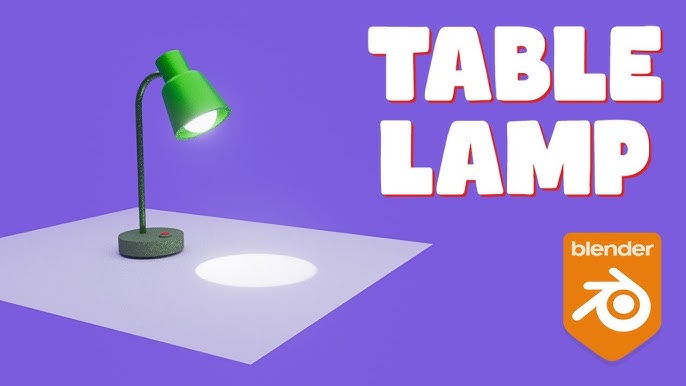
Are you ready to bring your creativity to life and design your very own desk lamp in Blender? Whether you’re new to 3D modeling or looking to sharpen your skills, this guide will walk you through every step in a simple and clear way.
By the end, you’ll have a unique, custom lamp model that you can be proud of. Imagine the satisfaction of creating something from scratch with your own hands—this article will show you exactly how to do it. Keep reading to unlock the secrets of Blender and turn your ideas into reality.

Credit: blenderartists.org
Setting Up Blender Workspace
Setting up your Blender workspace properly is key to staying productive while modeling your desk lamp. A well-arranged interface lets you focus on the creative process instead of hunting for tools or menus. You’ll save time and reduce frustration by tailoring Blender to fit your workflow from the start.
Customizing Interface
Blender offers a flexible interface that you can adjust to your needs. Start by choosing a workspace layout that suits modeling, like the “Modeling” preset. This layout highlights the 3D Viewport and essential tool panels.
Next, adjust the theme to reduce eye strain during long sessions. A darker theme often works best for 3D work. You can also resize panels and change font sizes to make everything easier to read and access.
Have you tried adding custom shortcuts? Setting shortcuts for your most-used tools speeds up your workflow significantly. For example, assigning a quick key to toggle wireframe view helps you inspect your desk lamp’s shape instantly.
Organizing Panels
Panels in Blender can be rearranged, collapsed, or expanded to suit your focus. Group related tools together to avoid clutter. For instance, keep the modifiers and materials panels side by side since you’ll likely switch between them frequently while creating your lamp.
Use the “N” key to toggle the right sidebar, which contains useful properties like transform options and item details. Hiding it when not needed gives you more screen space for modeling.
Consider adding a custom panel or workspace if you find yourself repeatedly using the same set of tools. This prevents constant clicking through menus and helps keep your desk lamp project moving smoothly.
Modeling The Lamp Base
Modeling the lamp base is a crucial part of creating a realistic desk lamp in Blender. This part anchors your design and sets the tone for the rest of the model. Focusing on clean, simple shapes first makes the process smoother and lets you build complexity step by step.
Creating Basic Shapes
Start with simple shapes like cylinders, cubes, or spheres to form the foundation of your lamp base. Use the default cube or a cylinder as your starting point because they are easy to manipulate and reshape.
Adjust the dimensions by scaling on different axes to match the size and proportions you want. For example, a flattened cylinder often works well for a sturdy lamp base. Think about the real lamp bases you’ve seen—do they have rounded edges or sharp corners? This will guide your shape choice.
Don’t hesitate to experiment with the proportions early on. Changing the height or width slightly can drastically affect the lamp’s overall look and balance.
Adding Details
Once you have the basic shape, add small details to make the base more interesting and realistic. You might want to add bevels to soften edges or inset faces to create grooves and patterns.
Use the loop cut tool to add extra geometry where you want to add curves or indentations. Details like screw holes, buttons, or textured surfaces can be created by combining simple shapes with boolean modifiers.
Think about the materials your lamp base will have. Adding details that mimic real-life textures like wood grain, metal ridges, or rubber feet can help you visualize the final product better. What small detail can you add that would make your lamp base stand out?
Designing The Lamp Arm
Creating the lamp arm involves shaping and positioning it for balance and style. Use simple shapes and adjust angles to fit the lamp’s overall design. Keep the arm sturdy but flexible to support the lamp head smoothly.
Designing the lamp arm in Blender is a crucial part of creating a desk lamp. This section requires precision and creativity. A well-designed arm not only ensures functionality but also adds aesthetic value to your lamp. Imagine the satisfaction of seeing a sleek and sturdy arm that you’ve crafted yourself.Using Extrude And Rotate
Start by selecting the face where you want the arm to begin. Extrude the face along the desired axis to extend it. This forms the basic structure of your lamp arm. Rotate the extruded section to create bends. This is essential for articulating the arm, allowing it to move and adjust as needed. Keep experimenting with different angles until you achieve a natural look. Blender’s tools make it easy to adjust the arm’s length and direction. You can always undo and retry, so don’t hesitate to explore different styles.Joining Components
Once you have the arm structure, it’s time to join components. Ensure each part of the arm is connected seamlessly. Use the ‘Join’ function in Blender to combine separate elements. Check for any gaps between components. Even a small gap can affect the arm’s stability. Use the ‘Snap’ feature to align pieces perfectly. Consider adding connectors or hinges where necessary. These elements improve functionality, allowing the lamp to move without compromising stability.
Credit: blenderartists.org
Crafting The Lamp Shade
The lamp shade is a key part of your desk lamp model. It gives style and controls how light spreads. Creating a good lamp shade shapes the whole look of the lamp. Focus on simple shapes first, then refine details. Keep the mesh clean for smooth results. Use Blender’s tools to build a clear, neat shade that fits the lamp base.
Shaping The Shade
Start with a basic shape like a cylinder or cone. These forms fit most lamp styles well. Use the Extrudeand Scaletools to adjust the top and bottom edges. Make the shape wider or narrower to match your design idea.
Check the proportions often. The shade should look balanced, not too tall or wide. Use the Loop Cuttool to add more edge loops. This helps control the shape better and adds detail where needed.
Applying Smooth Surfaces
Smooth surfaces make the lamp shade look more realistic and polished. Select the shade mesh and apply Shade Smoothfrom the object menu. This removes the blocky look and softens edges.
Use the Edge Splitmodifier if you want to keep some sharp edges. It helps keep a clean shape while smoothing the rest. Add a Subdivision Surfacemodifier to increase mesh smoothness. Adjust levels carefully to avoid losing shape detail.
Adding Materials And Textures
Adding materials and textures brings your desk lamp to life in Blender. It gives the model color, shine, and a realistic feel. Without materials, your lamp looks flat and artificial.
This stage allows you to define the surface properties. You decide if it looks metallic, plastic, wood, or glass. Textures add extra detail, like scratches, grain, or patterns.
Selecting Materials
Start by choosing the right material type for each part of the lamp. Blender offers options like:
- Diffuse: for matte surfaces
- Glossy: for shiny, reflective parts
- Glass: for transparent or translucent areas
- Emission: for light sources
Use the Shader Editor to mix and adjust these materials. Pick colors that match your lamp design. Adjust roughness and metallic sliders to get the look you want.
Applying Textures
Textures add surface details that materials alone can’t provide. You can add image textures or procedural textures in Blender.
Image textures are photos or graphics wrapped around your model. Procedural textures are generated by Blender using math patterns.
To apply textures:
- Unwrap your model to create a flat layout of its surface
- Assign the texture image in the Shader Editor
- Use mapping nodes to control texture scale and position
- Add bump or normal maps to create surface depth
Textures make your desk lamp look more realistic and detailed. They help simulate real-world materials like wood grain, metal scratches, or fabric weaves.
Lighting And Rendering Setup
Setting up lighting and rendering correctly can make your desk lamp model in Blender truly stand out. Proper lighting highlights the details and materials, while good render settings ensure your final image looks sharp and realistic.
Positioning Lights
Start by placing a main light source to mimic a natural light direction, such as sunlight or a room light. This helps create clear shadows and depth on your lamp model.
Use a combination of light types like point lights or area lights to simulate how light would realistically interact with your lamp’s surfaces. Experiment with angles and distances to avoid flat or overly harsh lighting.
Don’t forget to add a subtle fill light on the opposite side to soften shadows. This small addition can make your lamp look more three-dimensional and appealing.
Configuring Render Settings
Check your render engine choice; Cycles offers realistic lighting, while Eevee is faster and good for quick previews. Adjust the samples to balance quality and render time—higher samples mean less noise but longer rendering.
Enable denoising to clean up grainy areas without needing excessive samples. Set the resolution to at least 1920×1080 for a crisp final image.
Consider enabling ambient occlusion to enhance the small crevices and details on your lamp. This adds realism by simulating soft shadows in tight spaces.
Final Touches And Exporting
After modeling your desk lamp in Blender, it’s time to polish the scene and prepare your work for sharing or use. Final touches enhance the visual appeal and make sure your model looks its best. Exporting the model correctly helps you use it in other projects or platforms.
Adjusting Camera Angles
Choose the best camera angle to show your desk lamp clearly. Move and rotate the camera to find a view that highlights details. Use multiple angles if needed. Set the camera’s focal length to control the perspective. Ensure the lamp fits well in the frame without cutting off parts. Test render a few images to check lighting and shadows. Small changes in angles can improve the overall look.
Exporting The Model
Pick the right format for your export depending on your goal. Common formats include OBJ, FBX, and STL. Use OBJ or FBX for 3D use in games or animation. Choose STL for 3D printing. Before exporting, apply all transformations to keep scale and rotation correct. Check if textures and materials are properly linked if needed. Export with a clean file name and organize your files for easy access later. This helps maintain a smooth workflow for future use.

Credit: www.youtube.com
Frequently Asked Questions
How Do I Start Modeling A Desk Lamp In Blender?
Begin by creating basic shapes like cylinders and cubes. Use the Extrude and Scale tools to shape the lamp parts. Start with the lamp base, then model the stand and lamp head for a structured workflow.
What Materials Work Best For A Realistic Desk Lamp?
Use metal and plastic shaders for realism. Apply a glossy shader for metallic parts and a matte shader for plastic sections. Adding texture maps enhances surface detail and authenticity.
How Can I Add Lighting Effects In Blender For The Lamp?
Use an Emission shader on the lamp bulb to simulate light. Adjust the strength and color to match real lamp lighting. Position a Point light inside the lamp for added glow.
What Rendering Settings Improve Desk Lamp Visuals?
Use Cycles render engine for realistic lighting and shadows. Enable denoising to reduce noise in the final image. Adjust samples for a balance between quality and render time.
Conclusion
Creating a desk lamp in Blender is simple and fun. You can shape, color, and light it your way. Practice helps you get better and faster. Don’t worry about mistakes; they teach you a lot. Keep trying different ideas and tools inside Blender.
Soon, your 3D models will look great and feel real. Enjoy the process and keep learning every step. Your desk lamp project shows your growing skills clearly. Try sharing your work to get feedback and improve. Blender opens many doors for creativity and design.



