
Are your Govee lights on but you only want to turn off one or two without shutting down the whole setup? You’re not alone.
Managing individual Govee lights can seem tricky at first, but once you know the simple steps, it becomes a breeze. Imagine having full control over your lighting, setting the perfect mood without any hassle. Keep reading, and you’ll learn exactly how to turn off individual Govee lights quickly and easily—giving you the power to customize your space just the way you want.

Credit: www.reddit.com
Govee Light Basics
Understanding the basics of Govee lights is essential if you want to control them effectively. These smart lights come in various styles and offer multiple ways to manage their settings. Knowing your options helps you turn off individual lights without hassle, saving energy and customizing your space exactly how you want it.
Types Of Govee Lights
Govee offers a range of lighting products tailored to different needs. You’ll find:
- LED Strip Lights:Flexible strips that stick to surfaces, perfect for creating ambient lighting.
- Smart Bulbs:Standard bulbs with smart features, ideal for lamps or ceiling fixtures.
- Light Bars:Compact, rigid bars that add focused lighting accents.
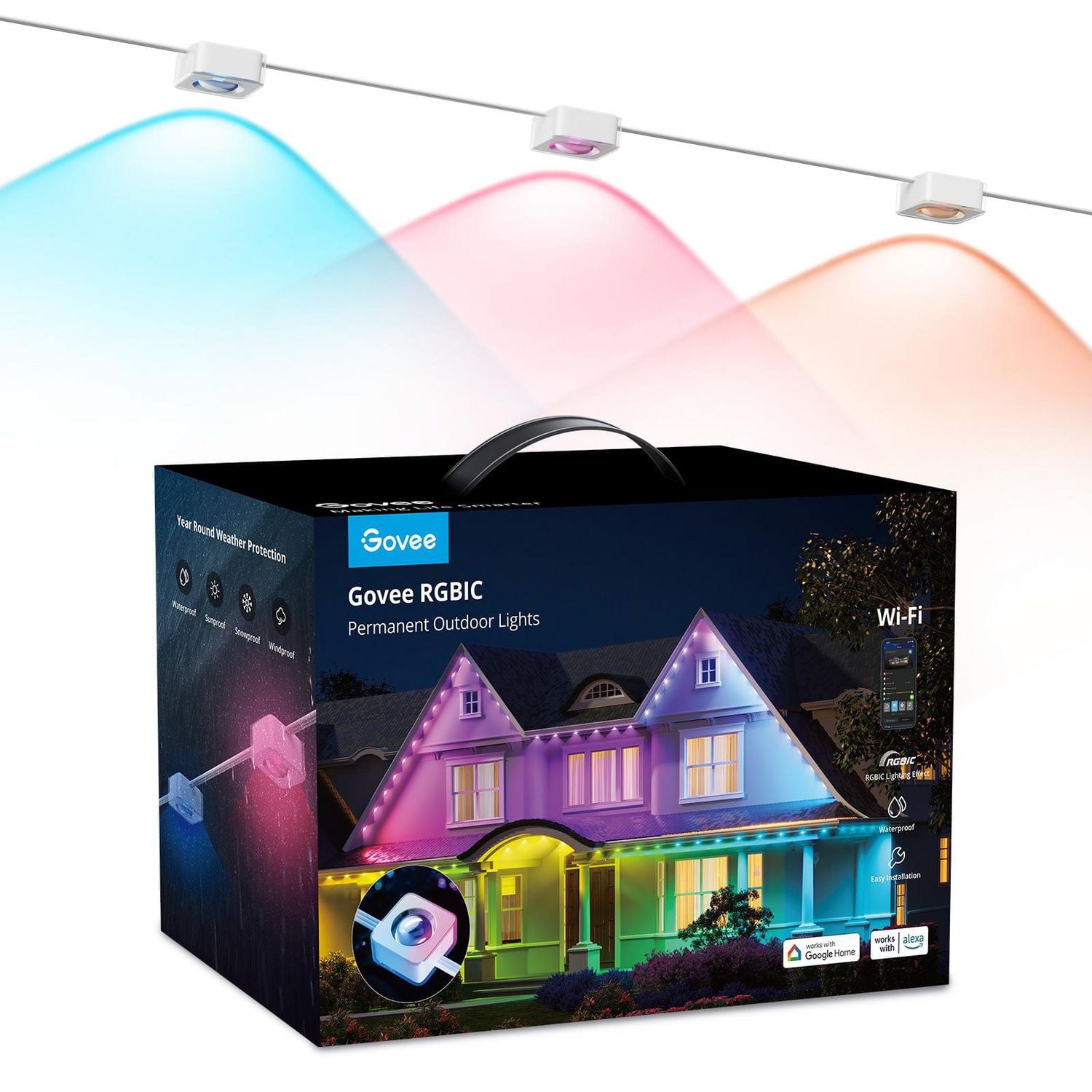
- Outdoor Lights:Weather-resistant options for patios and gardens.
Each type has unique controls and settings, so it’s important to identify which lights you’re working with before trying to turn them off individually.
Control Options
You can control Govee lights in several ways, giving you flexibility based on your setup and preferences. Common control methods include:
- Govee Home App:The most versatile tool, allowing you to manage individual lights or groups with detailed settings.
- Remote Controls:Some models come with physical remotes for quick access to basic functions.
- Voice Assistants:If connected to Alexa or Google Assistant, you can use voice commands to turn lights off or on.
- Touch Controls:Certain light bars and bulbs have built-in touch sensors for manual operation.
Which control option fits your daily routine best? Many users find the app indispensable because it lets you turn off one light strip while keeping others on, perfect for mood lighting changes.
Credit: www.walmart.ca
Using The Govee App
Using the Govee app to control your lights gives you precise power over each individual unit. It’s a straightforward way to manage your lighting setup without juggling multiple remotes or switches. The app brings all your Govee lights into one place, making it easy to adjust settings anytime and anywhere.
Connecting Your Lights
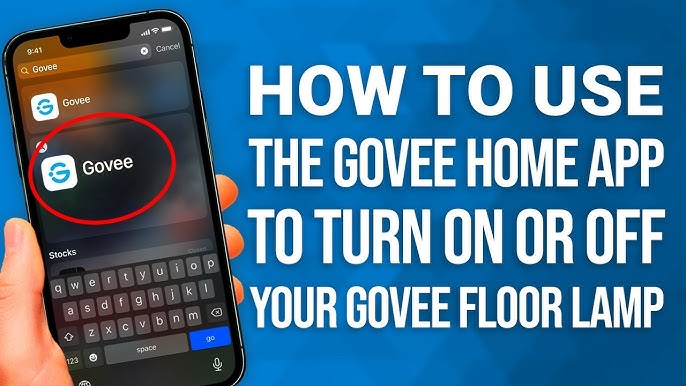
First, make sure your Govee lights are powered on and within Bluetooth or Wi-Fi range of your device. Open the Govee app and tap the ‘+’ icon to add a new device. Follow the prompts to select your light model and connect it to your app.
Once connected, your lights will appear on the main screen. If you have multiple lights, each will be listed separately. This setup allows you to control each light independently, which is perfect if you want to turn off just one lamp while keeping others on.
Navigating The App Interface
The app interface is designed to be user-friendly. On the main screen, you’ll see a list or grid of your connected lights. Tap on any light to open its control panel.
Within the control panel, you can adjust brightness, color, and other settings. Notice the power button at the top or bottom of the screen—that’s your main toggle for that specific light. The layout is intuitive, so you won’t spend time hunting for the right control.
Turning Off Individual Lights
To turn off a single Govee light, simply select it from your device list. Once inside its control panel, tap the power icon to switch the light off. This action affects only the chosen light, leaving others unchanged.
Have you ever left a light on in one room while turning off the rest? The Govee app solves that hassle instantly. This feature is especially handy if you want to save energy or create different moods in different areas of your home.
Manual Control Methods
You can turn off individual Govee lights using the physical buttons on each device. Press the power button to switch off the light without affecting others nearby. This manual control offers quick and simple adjustments for each light separately.
When it comes to controlling your Govee lights, sometimes you just want a straightforward approach without diving into an app. That’s where manual control methods come in handy. Whether you’re dealing with a sudden tech glitch or simply prefer a tactile experience, these methods offer quick solutions to power down individual lights.Physical Switches
Using physical switches is one of the simplest ways to control your Govee lights. Many Govee light strips or bulbs come with a small in-line switch. This switch is typically located on the power cord or near the power source. Simply press the switch to turn off the light. It’s an easy method that doesn’t require any technical know-how. The tactile feedback from the switch can be satisfying, ensuring you that the action has been completed.Remote Controls
Remote controls are another efficient option for managing your lights. If your Govee lights came with a remote, you’re in luck. The remote typically features a power button, making it a breeze to turn off the lights from a distance. Place the remote in a convenient location, like your bedside table or coffee table, for easy access. Ensure the remote has fresh batteries, as a dead remote can be a source of frustration. Do you have a specific spot where you frequently turn off your lights? Keeping the remote there can save you time and effort.
Credit: us.govee.com
Troubleshooting Tips
Troubleshooting issues with turning off individual Govee lights can be simple. Problems often come from app connection errors or device glitches. Knowing how to fix these helps save time and frustration. Follow the tips below to get your lights working smoothly again.
App Connectivity Issues
Check your phone’s Wi-Fi or mobile data connection first. A weak signal may stop the app from controlling your lights. Close and reopen the Govee app to refresh its connection. Make sure the app is updated to the latest version. Restart your phone if the problem continues. Sometimes, logging out and back into the app can help. Confirm that your lights are powered on and within range of your phone. If multiple devices connect, disconnect others to avoid interference.
Resetting Your Lights
Resetting your Govee lights clears errors and restores default settings. Find the reset button on the light strip or device. Press and hold it for about 5-10 seconds until the lights flash. This signals a successful reset. After resetting, reconnect the lights to the app. Re-pair the devices following the app’s instructions. Resetting often solves issues with unresponsive lights or failed commands. Keep in mind, resetting will erase saved settings and scenes.
Energy Saving Benefits
Turning off individual Govee lights can help save energy effectively. It reduces power consumption by only using lights where needed. This simple action lowers electricity bills and extends the life of your lights.
Using only the lights you want means less waste. It also helps reduce your carbon footprint. Small changes like this add up to big energy savings over time.
Reduce Electricity Usage
Switching off unused lights cuts down on electricity use immediately. This lowers your monthly energy costs without much effort.
Extend Light Lifespan
Turning off lights when not needed prevents unnecessary wear. This helps your Govee lights last longer and saves money on replacements.
Lower Environmental Impact
Using less electricity means less pollution from power plants. This helps protect the environment and conserve natural resources.
Better Control Over Lighting
Turning off individual lights gives you more control over your space. You can create the right mood while saving energy.
Frequently Asked Questions
How Do I Turn Off Individual Govee Lights?
Open the Govee app, select your device, tap on the specific light, and toggle the power off. This controls each light separately.
Can I Control Single Govee Lights With The App?
Yes, the Govee app allows you to manage individual lights within a device for customized control.
Is It Possible To Schedule Off Times For Govee Lights?
Yes, use the Govee app’s scheduling feature to set automatic off times for each light.
What If My Govee Lights Don’t Turn Off Individually?
Ensure your app and device firmware are updated. Reconnect the device if issues persist.
Conclusion
Turning off individual Govee lights is quick and simple. Use the app to select each light and switch it off. This method saves energy and lets you control your lighting easily. No need to turn off all lights at once.
Enjoy customizing your space with just a few taps. Keep your lights working how you want. Now, you can manage your Govee lights with confidence and ease.



